
Inside: Orbi Tri-Band WiFi 6 Mesh System Review. Press samples.
The wifi in our house has always been shocking, to the point that if I go upstairs I have to rely on my 4G to get any internet at all. The crazy thing is, we only live in a 3 bed mid-terraced house! So anyone saying that a mesh system is only for larger houses needs to think again. A mesh system is for anyone who cannot get wifi in all areas of their home, for whatever the reason.
The Orbi Wifi 6 Mesh System uses multiple satellite devices to allow your wifi signal to be transmitted and then boosted around your home with up to 5’000 square feet coverage. Simply connect the main Orbi router to your current router, complete set up in the mobile app and let Orbi take care of the rest.
We have been trialling the Orbi Wifi 6 system for the past couple of months and the difference is unreal. I could never go back to our basic router again.
What is a router mesh system?
A mesh system is quite simply a network made up of a router and satellite units that communicate with the each other to blanket your home with a strong and stable wifi signal. The satellite units are places around your home to make sure the signal is reaching every point in every room rather than relying on one router to try and penetrate through walls or cover a large distance.
Our home isn’t particularly large and the walls aren’t thick, and yet our basic Virgin router was not able to reach upstairs or even into the next room. With the Orbi system in place we can now get a strong wifi signal everywhere.
Benefits of a mesh system
Obviously the main benefit of a mesh system is the fact that you get wifi in all areas of your home. But there is more to it than that.
With the Orbi 6 Mesh System, as well as getting up to 5,000 sq. ft. of coverage around your home, you also get 6Gbps of consistent wifi speed. Not only that, you can simultaneously stream, game and video call on over 100 different devices. With homes having increasing numbers of devices, with individual family members accessing the wifi at the same time, it is a must-have feature!
With all of these devices connecting to the internet, you also want to make sure your personal data is kept secure. The Orbi system keeps you safe from online threats with 1 year of NETGEAR Armor™ all-in-one internet security.
Orbi uses a third dedicated wifi connection, using their exclusive Tri-Band Mesh technology for efficient data transmission, to give you maximum speeds for the ultimate wifi experience. Every device which connects to the system will have a faster wifi performance that is consistent wherever you are in the home.
What is included in the box?
Inside the box you will find everything you need to get started.
- Orbi Router (10 x 2.8 x 7.5in – 2.86lb)
- Orbi Satellite (10 x 2.8 x 7.5in – 2.86lb)
- 2m Ethernet cable
- 2x Power adapters (12V/ 3.5A)
- Quick start guide
Orbi Technical Specifications:
- Implicit & Explicit Beamforming for 2.4GHz & 5GHz bands MU-MIMO meaning simultaneous data streaming to multiple devices without loss of network.
- AX6000 Tri-Band WiFi : 2.4GHz + 5GHz connection for WiFi devices. Plus a 5GHz dedicated WiFi link between the Orbi Router and Satellite to allow for faster data connections.
- A 2.5 Gbps WAN port and 4 LAN Gigabit Ethernet ports
- Powerful Quad-Core 2.2 GHz processor
- 512MB NAND Flash and 1GB RAM
Setting up your Orbi system

Whether you have a small or large home, mesh systems can improve your wifi connections and keep everyone in the family happy. The good news is, they are really easy to set up and get going – all you need is your Orbi system and the Orbi app.
Download the Orbi app from the AppStore or the Google Store and follow the instructions when prompted.
The first thing you’ll have to do is set up a NETGEAR account (this can be done within the Orbi app). You’ll need to give an email and set a password – verifying the email when they send you an email to confirm.

Once you have an account, scroll down the app to “set up a new Orbi system” to link your device to the app. It will scan the area and let you know when it has found your Orbi router and satellites.
Part of the set-up process involves creating a password for your new network – this will be the password you use when adding all of your devices to the network – taking over from your old network and password that you usually use.
Connecting your Orbi router to the internet
You may be able to connect your Orbi Router directly to your internet cable (getting rid of the original entirely) but certain providers (and we found this with Virgin) have a dedicated connector that only works with their router. So, instead you keep the original router in place and connect the Orbi to that instead, using the Ethernet cable provided.
If that is the case, you will need to convert your original router into a simple modem device. To do this, you usually have to log in to your router account. Details of this are usually printed alongside your wifi password on the original stickers they give you (found on the device itself usually).
The URL will be an IP address so simply type that into a browser and then enter the password when prompted.
In our account, there was a tab for ‘modem mode’ which allowed us to select ‘modem only’. For detailed instructions for your particular model, just Google “NAME OF YOUR ROUTER + convert to modem mode”.
Addition features in app
The app is great, with additional features that are a bonus to the great bonus coverage you get with Orbi.
- Comprehensive anti-virus & data theft protection included for the first 30 days with NETGEAR Armor™ (with an option to get it for a year at a discounted price) so that your home and mobile devices are protected according to Standards-based WiFi Security.
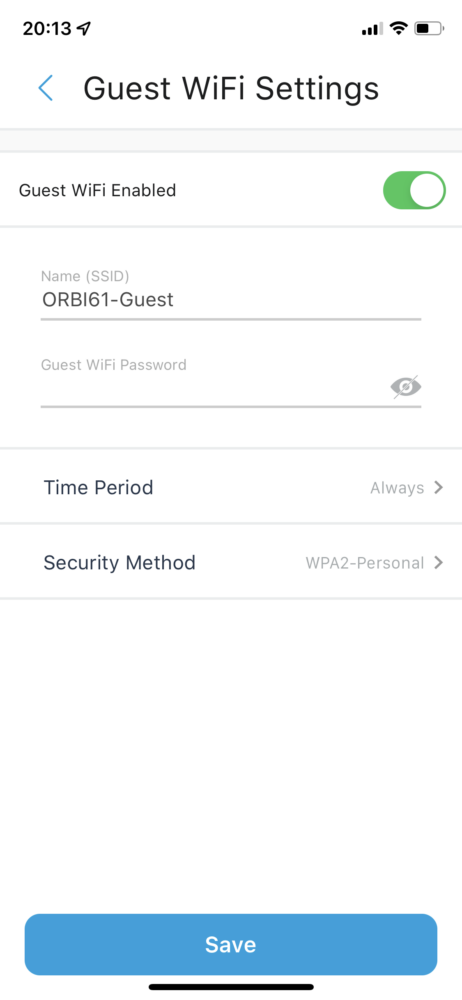
- Guest WiFi Network capabilities so you can easily set up separate access for guests, without compromising your personal information.

- Parental controls – set boundaries and limits for each family member. Assign their devices to that profile to limit usage if needed.
- Internet speed checker so you can keep track of any changes or drops in service.
- Device manager to keep track of all devices that are accessing your network – with the ability to disallow any if needed.
Our experience
Set-up was really easy once we had converted our Virgin router into a modem and set up the new Orbi Router using the app. The only difficulty we had was going through each of our devices to disconnect from one to the other.
Some were easy (Apple devices for example) but others like our Amazon Alexa devices needed removing from our Alexa app and reinstalling so that we could tell them to use a new wifi device. The process certainly makes you appreciate how many devices you own as a family!
Our download speeds have been much faster and our internet connection has been stable every minute of the day – critical with two of us working from home. There are no more dead zones either so we no longer have to turn our wifi off when we go upstairs to be able to use 4G instead – it’s great!
When the kids are home and are playing on the game consoles, watching smart TVs and generally taking up space on the home network, the Orbi system has still been providing an excellent performance with reliable wifi no matter how many devices we are using or if a family member is downloading something large.
Now that we have the best wi-fi we could possibly ask for, I’m not sure how we survived so long without it!
If you are looking at mesh wi-fi systems then go check out the NETGEAR Orbi products at netgear.com/uk